Showing posts with label Android. Show all posts

Tuesday, November 28, 2017

Ressurection REMIX kitkat|stock rom go to rompure.com


One of the great roms for Galaxy SII..amazing look, great performance, awsome battery life by westcrip xda developers.video review on my youtube channel

INSTALLATION Samsung Galaxy S II - I9100:

Make sure you are either on any KitKat ROM (CM11, etc) or on 4.2.2 TW based ROM and NOT on 4.1.2 TW based ROM (if you are on JB, flash this CWM before flashing any KITKAT rom http://d-h.st/QB1)
- Download the latest build:http://d-h.st/users/westcrip/?fld_id=31362#files
- Download Gapps http://d-h.st/0nL
- Take a nandroid backup
- Recommended - Full wipe and factory reset
- Flash ROM using latest ClockworkMod recovery
- Flash Gapps
- Reboot.


for other devices download here: http://forum.resurrectionremix.com/index.php?topic=2037.new#new

Samsung Galaxy S II - I9100 (by westcrip)

Samsung  Galaxy S II SGH-I777  (by SteveMurphy)

Samsung  Galaxy S II Plus  (by xenon92)

Samsung Galaxy S III - I9300 (by westcrip)

Galaxy S III  T-Mobile (by Deliberate)

Galaxy S III  AT&T (by Deliberate)

Galaxy S III  i9305 (by rodman01)

Samsung Galaxy Note II  - N7100  (by westcrip)

Samsung Galaxy Note IIl  T-Mobile -  HLTE (by ZION959)

Samsung Galaxy Grand Duos i9082  (by xenon92)

Samsung Captivate I897  (by rodman01)

Samsung galaxy s I9000   (by rodman01)

Samsung  vibrant T959  (by rodman01)

Galaxy S Advance I9070 (by t4n017)

Galaxy Ace II  (by t4n017)

HTC Devices

HTC One - M7 (by westcrip)

LG Devices

Nexus 5 - hammerhead (by n205des)

Nexus 4 - Mako (by rodman01)

Motorola Devices

Droid RAZR - spyder GSM-CDMA (by n205des) 

Thursday, November 23, 2017

TUTORIAL FOR S2|stock rom go to rompure.com


VIDEO TUTORIAL ON MY YOUTUBE CHANNEL!


How to upgrade from a JB rom to KK? you need to have root and a recovery installed on JB rom..if you have you can follow this tutorial!

1.enter recovery and install this: http://d-h.st/sKD
2-install this just to be sure: http://d-h.st/Pqs
3-flash a CWM kitkat compatible :http://d-h.st/e7f
4-go to advanced and reboot to recovery
5-flash your KK rom and gapps
6-reboot and enter the rom! all done!

OPTIONAL EXTRAS AND ADDONS:
7-before you flash a new kernel you have to flash this:http://d-h.st/Pqs and then install apolo KK kernel if you want.http://d-h.st/Z4a
8-download apolo JB configurator from playstore to have BLN if you want, it works fine.
9-if you dont like the cm11 default keyboard, flash this xperia Z1 keyboard with swype:http://d-h.st/Bt3

IF YOU WANT TO GO BACK TO JB ENTER RECOVERY AND USE STEP 1 AND 2. ON STEP 3 FLASH philz RECOVERY: http://d-h.st/VGg  or Apolo JB: http://d-h.st/nnA and reboot to recovery..you have the JB recovery and can restore your previous rom or a new one.

NOTE: I USE ALWAYS APOLO JB KERNEL TRWP..SO I HAVE ALL MY JB ROMS backup with that recovery..so i use the same recovery to restore it..if you backup your JB rom with PHILZ recovery flash the first one.

thanks to hawkerpaul for his wiping scripts.

Saturday, November 18, 2017

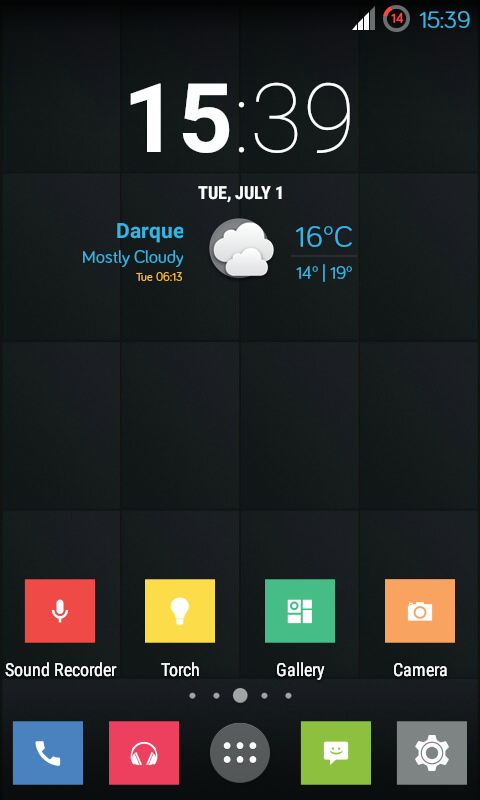
TechFusion+ V2 android 4.4.3 for GALAXY S2|stock rom go to rompure.com


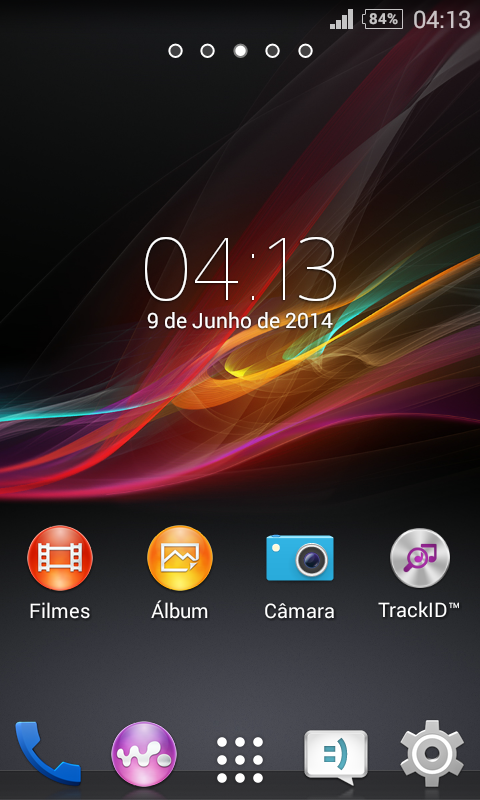
This is a new rom for Galaxy S2 with xperia look, great performance and good battery life..it doesnt have many features as Carbon..its a clean rom, very little and for daily usage is perfect..great new camera and best sound for GALAXY S2 and sony apps like walkman, album, movies and socialife working fine.

*download rom:http://d-h.st/MRJ

NOTE: you can flash dorimanx kernel or apolo KK. installation is like any other kitkat rom.
many thanks to @Techpenguin5 xda developers.

Friday, November 17, 2017

Samsung Galaxy Series|stock rom go to rompure.com


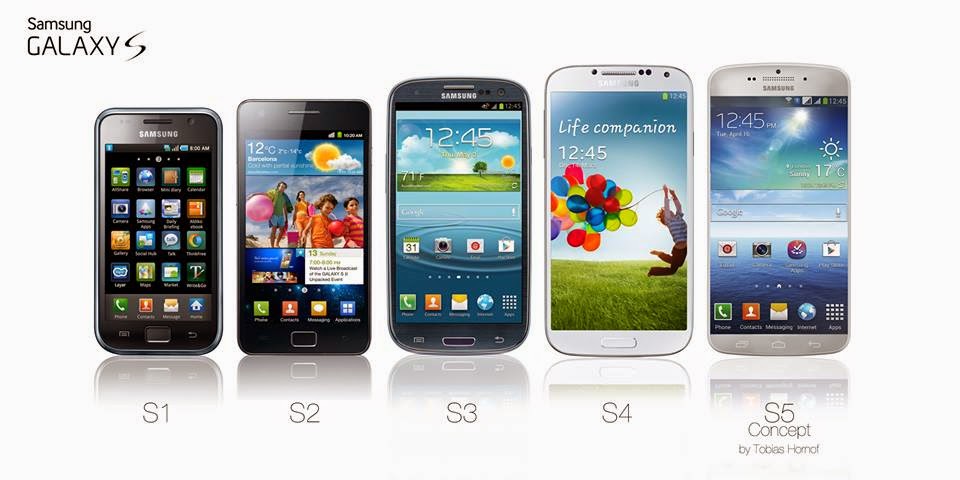
From now i will support also samsung series, from galaxy Ace, S, S2, S3 MINI, S3 and S4 and a few others..all rom reviews,installation steps, helpful guides and comments here and also on my youtube channel.

Thursday, November 9, 2017

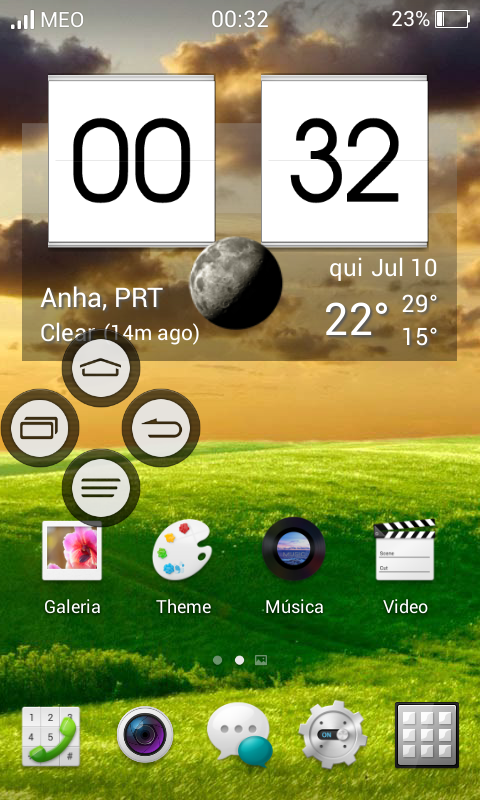
Coloros LITE 2.0 android 4.2.2|stock rom go to rompure.com

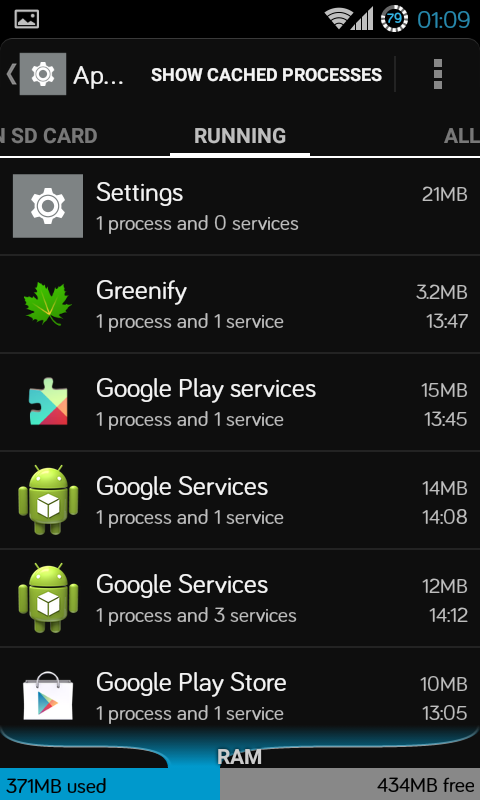
So this is a beautiful rom, with many features and also themes choice..good performance, great battery life and great features as MI pop , gives you OSB on anywhere of the screen you want..free ram is average 300-350. In this LITE version i ve changed keyboard, its debloated almost fully, i ve replaced some chinese apps that we dont use, updated GPS hosts to Europe to improve signal, i ve implemented sound tweaks and some audio libs ported from xperia phones and a few other tweaks to improve performance and battery life wich is very good..dont forget that is a WIP so some bugs may appear..if so report here please and give any suggestions you have to improve the rom. This is my version wich is a bit different from original rom, so use at your own risk and read carefully my installation guide below and dont forget: always backup your current rom.

This download is only for i-9100 users!!! GALAXY S2 ONLY!

Installation:

OPTIONAL: flash apolo 5.1 TWRP kernel:http://d-h.st/IU1
or Apolo regular 5.1 CWM kernel: http://d-h.st/R2N
 install apolo configurator JB from playstore.


THANKS TO AE86 AND HIS DEVELOPERS TEAM for original rom.

Monday, November 6, 2017

SOKP-MS-02 kitkat rom |stock rom go to rompure.com

So this is one of the great kitkat roms for S2 and S3 that i ve tried..great look,many features, great performance and user friendly..still needs more work but ready for daily usage and without problems.
I have to tell you that i felt a little battery drain on this last version but stay tunned for next releases that i m sure will be better and better. SOKP team developers are doing amazing.


 INSTALLATION on GALAXY S2:
- flash this recovery if coming from JB: http://d-h.st/e7f
-flash this to wipe all in 1 touch: http://d-h.st/sKD
flash rom for s2: http://sonic-developers.com/downloads/index.php?dir=i9100/
flash gapps:http://sonic-developers.com/downloads/index.php?dir=Gapps/

for s3/s4/note2 and other devices click here:http://sonic-developers.com/?page_id=7

OPTIONAL: theme:https://play.google.com/store/apps/details?id=com.slukk.oneplusone


Saturday, October 15, 2016

What's app image tricks for Android

What's app tricks 


Whatsapp change image thumbnail trick actual download image is difference and in chat thumbnail image is difference. Make fun and share fun with your friends. You may have received any picture from your friends in whatsapp this image thumbnail is different in chat screen but actual download image is different you get shock how does it happened does it a magical trick or how your friend do this magic friends don’t worry it’s not a magic it’s a simple trick do by a android (.apk) application. You also can do this by using these apps. In android market many application have for this trick in this post I m going to tell 2 apps.


First download this apps from below giver download links.
1.


2.


That’s all guys! By using these Android apps you can easily create and send the dual display magic pictures for on-touch thumbnail change.

For more WhatsApp tips, and tricks  follow us 😊

You may also like:
-Best laptops under Rs 50,000 in India for October 2016


Thursday, September 29, 2016

Where to put update zips for CyanogenMod 13

On my nicki device, the cyanogenmod updater downloads the updates to /storage/emulated/0/cmupdater, so when it reboots to recovery, they aren't available.
They have to be moved to /data/media to be usable.

Friday, September 23, 2016

Google's new Duo Video calling app hit 10M downloads!!!


Google Duo Video Calling App Touches 10 Million Downloads on Android

  • Google Duo was made globally available last month
  • Duo video calling app lets people call their phone contacts
  • In India, the app is ranked 24 on top charts list in Google Play


Google's month-old video calling app, Duo, has hit 10 million downloads on Google Play - and has 10 million users as well. Google Product Lead for Communication Amit Fulay announced the milestone in a tweet saying, "Google Duo is over 10M users on Android, thanks for the love."

The new video calling app just four days after its global rollout on Google Play made it to the top of the charts as top free app. The Duo app is available in all countries where Google Play is available.

Android Police points out that Duo despite hitting 10 million downloads has dropped significantly on top charts on Google Play. In the US, the app is now ranked 124  in the top free apps chart list. In India, Google Duo is however ranked 24 on the top free apps charts.

The company's brand new video calling app was launched last month to take on Apple's FaceTime, Microsoft's Skype, Viber, and others similar services. The Duo app lets  people call their phone contacts (as long as they have the app installed) and one of the biggest highlight features is it can work even on low networks.

Another notable  feature of the Duo app is 'Knock Knock,' which essentially shows preview video of the caller and lets people decide whether to answer or not. Google had previously  confirmed that the Duo video calling app uses end-to-end encryption and will be HD quality though the app will adjust it as per the available network. To recall, Google Duo was first announced at I/O developers' conference in May.

is iOS10 Good or Bad or Ugly- Come lets see .


Recently Apple has launched iOS 10 for the iPhone,iPad and iPod touch as well.This upgrades brings some exciting new features to the world of iOS. But how many of Indians using Siri and is Siri will understand or recognising India English accents? Can it tell whether you're saying WhatsApp or what's up? We discuss all of that and more.Apple music enhanced in iOS10.Also there are lot of flip between iOS10 and new Android version.

The new iOS 10 comes with good features which is not bad as earlier version of iOS and Android.Also when compare to Android iOS not ugly as usual.This is just comparison not review.

Tuesday, September 13, 2016

Living without Google Play

Amid the news about Google Play turning on location tracking without consent, let me share how to avoid it.
Step one - install CyanogenMod on your phone.
Step two - do not install Google Play.

Now you have a clean foundation to build on, but how to install apps without Google Play? That's actually quite easy - most opensource apps can be had at the F-Droid store.
To install proprietary apps, I use Raccoon on my desktop to download the apk files from Google Play. Once I move them to the phone they can be installed by tapping on them in the file manager.


Monday, August 22, 2016

Android Nougat new features: What to expect from the next Android OS

Android Nougat new features can be divided into three clear categories: performance, security and productivity.Performance in Android Nougat

Release Date Leaked for Android 7.0 Nougat !


Android 7.0 Nougat comes along with Nexus devices New Nexus devices expected to release on coming Monday Google has so far not confirmed availability of Android N

The new Android operating system for mobile coming soon earlier this year which Google is expecting to release Android 7.0 Nougat coming Monday.This new version of Android 7.0 named as
Nougat which is released to developers to play with it at I/O conference.

Google this year has been slightly ahead of schedule when it comes to releasing the next version of its Android operating system, Android 7.0 Nougat, for mobile devices.  The company released the first developer preview a full two months ahead of I/O conference giving developers a chance to play with it. Google also confirmed the official  name of next Android version, Nougat, in June.

Now, if a mobile carrier and a major Android OEM are to be believed, the all-new Android Nougat will be available to Nexus users starting Monday. According to Canadian mobile  operator Telus, the final Android 7.0 Nougat build will start rolling out to the Huawei Nexus 6P and LG Nexus 5X beginning Monday. LG, on the other hand, in an official document has confirmed that Android 7.0 Nougat will be rolled out to Korean G5 units from Monday. With both companies mentioning the same day for availability of the final Android N release, it does appear as if Google may officially start seeding the final build in the time-frame.

If this comes out to be true, we may also see the launch of the platform lead devices for Android Nougat to be announced on Monday itself. However, it is worth noting that  Google is yet to announce a date for release.

We can expect the final build of Android 7.0 Nougat to be available for the Nexus 6, Nexus 5X, Nexus 6P, Nexus 9, Pixel C devices, as well as General Mobile 4G Android One devices.
The final Android Nougat public release will bring improvements like multi-window support, enhanced notifications, revamped doze, number blocking, and more.

At the latest count on 1 August 2016, Android Developers published the following breakdown of Android platform segregation:
Android version
Codename
Distribution
2.2
Froyo
0.1%
2.3.3-2.3.7
Gingerbread
1.7%
4.0.3-4.0.4
Ice Cream Sandwich
1.6%
4.1.x
Jelly Bean
6.0%
4.2.x
Jelly Bean
8.3%
4.3
Jelly Bean
2.4%
4.4
KitKat
29.2%
5.0
Lollipop
14.1%
5.1
Lollipop
21.4%
6.0
Marshmallow
15.2%

Saturday, August 20, 2016

Top 10 tips and tricks you need to do immediately on your new Galaxy Note 7 to increase performance and battery savings.


How can I make my Galaxy Note 7 even better, right out of the box?

The Galaxy Note 7 is Samsung's best phone ever, but it's not perfect. Some of the out-the-box settings are a little strange, and others are downright frustrating. Here's how you can make it the best possible experience — immediately!


  • Turn off the icon frames
  • Alphabetize your launcher
  • Change your keyboard
  • Set up Do Not Disturb
  • Set up a Samsung account
  • Customize your Always on Display
  • Enable the Blue light filter
  • Change the content scaling
  • Set up the iris scanner
  • Customize your Quick Settings


Turn off the icon frames
We're not sure why Samsung decided to jazz up its app icons with white frames, but in order to reach some sort of consistency it did the same thing with all the other icons, too.
We're not impressed. Turn off the icon frames and get back your zen.


  • Open Settings.
  • Tap Display.
  • Tap Icon frames.
  • Select Icons only.


Alphabetize your launcher
Samsung maintains that your app drawer should be customized according to taste, but we think your app drawer should be alphabetized... for harmony. It's easy to do it, too.
Just remember that even after ordering the icons alphabetically, future app installs will append to the end of your app list, requiring you to perform the action regularly.


  • Open the App Drawer.
  • Tap the Menu button on the top right.
  • Tap A-Z.


Change your keyboard

Samsung has improved its native keyboard quite a bit over the last few years, but it is still not very good at predicting what you want to say — especially if you're a fast typer.


 On the Note 7, the Samsung keyboard disables autocorrect and predictive typing by default, and won't underline misspelled words. Instead of fighting with it,  install the Google Keyboard and be a happier person — and a more accurate typer.


  • Open Google Play Store.
  • Search for Google Keyboard.
  • Tap on Install.
  • Tap on Open.
  • Follow setup instructions.


Set up Do Not Disturb
The Note 7 has a great Do Not Disturb function that allows you to set certain times of the day or night when the phone won't produce sound or vibration when alerted.

While you can activate DND manually, the best way to do it is to schedule it for right before you go to bed, and right before you wake up. It's even possible to set it for certain days, so you can stay up late on weekends and still get notified.


  • Open Settings.
  • Tap on Sounds.
  • Tap on Do not disturb.
  • Activate Turn on as scheduled.
  • Change desired settings for Days, Start time, and End time.


Set up your Samsung Account
Yes, it seems unnecessary, and yes, it's yet another account to sign into, but a Samsung account is increasingly important on a Galaxy device. For starters,
 it enables the new Samsung Cloud, which offers 15GB of free cloud storage and free backup of your contacts, calendar entries, photos, documents and more.
 It also facilitates the Secure Folder, powered by Knox, which is a great tool for storing confidential personal information within the phone.

You can set up your Samsung account when first setting up the Note 7, but in case you skip that step, you can do so anytime.


  • Open Settings.
  • Scroll down and tap on Cloud and accounts.
  • Tap on Accounts.
  • Tap on Add account.
  • Tap on Samsung account.
  • Follow setup instructions.


Customize your Always On Display
Depending on the carrier and country you purchase your device, your Galaxy Note 7 may have its Always On Display turned on or off. Either way,
the feature is worth investigating for its myriad features. Leaving it on indefinitely has a negative impact on battery life, while customizing it to show your calendar entries is incredibly convenient. The choice is yours.


  • Open Settings.
  • Tap on Display.
  • Tap on Always On Display.
  • Slide switch to On (if necessary).
  • Tap Layouts. Choose a content type and theme.
  • Press back button.
  • Tap Set schedule.
  • Choose a Start and End time.


Set up your Blue light filter
One of the best new settings on the Galaxy Note 7 is its blue light filter, which cuts down on the sleep-affecting blue light generated from modern displays.
The Note 7 goes even one step further and adds a Sunrise to Sunset toggle that enables the feature when the sun goes down and turns it off the following morning.
It's incredibly handy, and may just stave off that sleepless night.


  • Open Settings.
  • Tap on Display.
  • Tap on Blue light filter.
  • Slide switch to On.
  • Select Sunset to sunrise.


Use content scaling to fit more on the screen
The Galaxy Note 7 comes with a beautiful 5.7-inch QHD display, and one advantage of that high resolution is the ability to fit more on the screen at once — more text, more icons, and more images. But this denser content scaling is turned off by default, since for some people the text will be too small. Experiment with smaller content scaling and see if it makes sense for you.

  • Open Settings.
  • Tap on Display.
  • Tap on Content scaling.
  • Select Small.
  • Tap Done in the top right.


Set up the iris scanner to unlock your phone
The Galaxy Note 7 has one major feature its S7 counterparts don't: an iris scanner. Not only are iris scanners inherently more secure than a fingerprint sensor,

but it also works in situations your thumbs do not: when it is raining, or when your hands are sequestered inside gloves. Enable the iris unlock by letting the phone take a
 scan of your eyes, and learn to love unlocking a different way.


  • Open Settings.
  • Tap Irises. Enter security code.
  • Tap Continue. Follow instructions.
  • Once setup is complete, press Turn on.
  • Toggle Web sign-in and Verify Samsung account if desired.


Customize your Quick Settings
When you first pick up the Galaxy Note 7, especially after coming from an older Samsung device, you'll quickly see that the software is different in subtle but important ways.

 One of those areas of change is the new Quick Settings menu, which is much simpler and easier to use. But it is still powerful, and very customizable. Here's how to do it:


  • Pull down the notification shade from top of the screen.
  • Pull down again on the two horizontal lines to expand Quick Settings.
  • Hold down on any icon for a second.
  • Drag quick setting buttons to desired place.


How to Set up and Install Google Duo on Android Phones.


Google has released a wonderful cross platform video chat mobile app recently which is works well on all Android smartphones.The new Google app is called Duo.The new Duo application not tied with Gmail account instead it tied with phone number because its easy to chat with contacts which is already on the  phone.Google launched Duo on Google play as well as Apple iOS.Actual meaning of Duo is simplicity and now we can see how simple the app is to use.


  • How to set up Google Duo
  • Making a call in Google Duo
  • Receiving a call in Google Duo
  • In-call controls in Google Duo
  • Google Duo settings


How to set up Google Duo
1.Download Google Duo from Google Play.
2.Open Duo.
3.Agree to Google's Terms and Conditions for the Duo app.
4.If you're running Android 6.0 or higher, you'll have to accept permissions one-by-one at launch:
Allow Duo to take pictures and video so that the app (and whoever calls you) can see you.
Allow Duo to record audio so that the app (and whoever calls you) can hear you.
Allow Duo to access your contacts so that it can see which of your contacts are on Google Duo and who you could invite to the service.Allow Duo to send and view text messages to that it can send invites to your contacts and so it can see the verification code you'll receive in a few steps.
5.Type in your phone number to use with Google Duo.
6.Your phone will receive a text message to verify your number. Sometimes the app will read the verification code text message itself, but if it doesn't,enter it manually. (If the SMS code doesn't work, there's an option to receive an automated voice call with the code.)
7.You are ready to use Duo!

Making a call in Google Duo
1.Tap Video Call.
2.Select the person you'd like to call from your contacts or type in the number you'd like to reach. Note: The number of your contact must include the country code,
 for example a U.S. number would be 1-XXX-XXX-XXXX.
3.Duo will call your contact, making your video visible with Knock Knock.
4.To end your call, tap the red phone button in the bottom center of your screen.

Receiving a call in Google Duo
When receiving a call in Google Duo, you will see what your caller looks like and what they're up to if they have Knock Knock enabled.

Swipe up on the call button to accept it.
Swipe down on the call button to reject it.


In-call controls in Google Duo
Tapping the screen while in a Duo call will bring up controls for the call.

  • To mute your microphone during a call, tap the mute button above your video preview in the bottom left corner.
  • To switch cameras during a call, tap the camera button above the mute button on the left side of the screen.
  • If you are connected to a Bluetooth headset, you can switch between Bluetooth and the internal speaker/microphone using the Bluetooth button above the camera button on the left side of the screen. 


Google Duo settings
You can reach Google Duo's settings by tapping the three-dot menu in the top-left corner of the app's main screen and selecting Settings.

If you don't want the people you call to see you before they accept the call, you can slide the toggle for Knock Knock off.By default, the setting to limit mobile data usage is on, knocking down the video quality when you're away from Wi-Fi, so if you want full video quality while you're on the side of the road with a broken-down car asking your gear head buddy what's smoking under the hood, this is where you can enable it.

Tuesday, August 9, 2016

Asus's new smartphone ZenFone 3 to be launch on August 17.


Recently Asus has sent invitation to all media partner to launch Zenfone 3 in India for the event which is going to be happen on New Delhi on August 17. The event called 'Z3nvolution India', will see Asus CEO Jerry Shin in attendance. But in the invite doesn't carry any specific smartphone information.

But we can recall Asus had first unveiled Zenfone 3 in Zenvolution at a event in Taipei.At the time of event the company has announced the ZenFone 3, the ZenFone 3 Deluxe, and the ZenFone 3 Ultra.

The launched Asus ZenFone 3 (ZE552KL) priced starting $249 (roughly Rs. 16,800) at Taipei.This new smartphone comes with features like a 5.5-inch full-HD Super IPS LCD display, a Snapdragon 625 processor, 3GB or 4GB of RAM, 32GB or 64GB of inbuilt storage, microSD card support (up to 128GB), a 16-megapixel rear camera, an 8-megapixel front-facing camera,  USB Type-C port, and a 3000mAh battery.

The Asus ZenFone 3 Deluxe (ZS570KL) was priced at $499 (roughly Rs. 33,600), and sports a 5.7-inch full-HD Super Amoled display, a Snapdragon 820 SoC, 6GB of RAM, 64GB  of inbuilt storage, microSD card expansion (up to 256GB), a 23-megapixel rear camera, an 8-megapixel front-facing camera, and a 3000mAh battery. The Snapdragon 821 model  launched in July featured a TWD 24,990 (approximately Rs. 52,000) price tag.

The ZenFone 3 Ultra (ZU680KL) was priced at $479 (roughly Rs. 32,200), and features a 6.8-inch full-HD IPS LCD display, a Snapdragon 625 SoC, 4GB of RAM, 64GB inbuilt  storage, microSD card support (up to 128GB), a 23-megapixel rear camera, an 8-megapixel front camera, and a 4600mAh battery.

The ZenFone 3 Laser was launched in Vietnam at VND 5,990,000 (roughly Rs. 18,000), and bears a 5.5-inch full-HD display, an octa-core processor, 4GB of RAM, 32GB of inbuilt  storage, microSD card expansion, a fingerprint scanner, and a 13-megapixel 'PixelMaster' rear camera.

The Asus ZenFone 3 Max on the other hand was priced at VND 4,490,000 (approximately Rs. 13,500) in Vietnam, and features a 5.2-inch full-HD IPS LCD display, 3GB of RAM, 32GB
of inbuilt storage, a fingerprint scanner, and a 4100mAh battery.

Asus ZenFone 3 (ZE552KL) Asus ZenFone 3 (ZE552KL)

Key Specification

  • Display 5.50-inch
  • Processor  octa-core
  • Front Camera  8-megapixel
  • Resolution  1080x1920 pixels
  • RAM  3GB
  • OS  Android
  • Storage 32GB
  • Rear Camera 16-megapixel
  • Battery capacity 3000mAh

Monday, August 8, 2016

GadgetCongress Review - Oppo F1s


 Oppo has recently released new F1s smartphone in India.Now we will cover the complete  Oppo F1s review completely.Some of the highlighted points are listed.

Big Points
The Oppo F1s is another upgraded version of F1 in addition to 16-megapixel selfie camera
Fastest fingerprint sensor as well as long life battery
In India Oppo F1s price is Rs. 17,990

The 5.5-inch IPS display produces rich colours, and the maximum brightness level is much better than the Oppo F1 could manage. We had no trouble with the display under direct  sunlight. Even though the panel is good, we're not happy about the HD resolution, which is a bit too coarse for a screen of this size. Even though pixellation isn't all that apparent,  it would have been nice to have text and icons just a bit sharper, and that isn't asking for too much considering this phone's price point
The F1s gets a fingerprint sensor, which was missing on the F1, and it works very well. Just like the F1 Plus, the screen unlocks instantly.

The sensor is flanked by two backlit  capacitive buttons. Oppo also throws in a notification LED near the top. The all-metal body looks really good and the glossy gold trim that runs along the edges of the phone adds  to the device's premium aesthetic. Button placement is ergonomic although we would have liked better spacing between the volume buttons so we could distinguish them better. The headphones socket is on the bottom, along with a Micro-USB port and mono speaker. Once again, the headphones socket would have been better on the top as cable tend to get in the way while you're trying to type.

Around the back, we have the 13-megapixel camera and LED flash. The battery is sealed inside and is non-removable. The SIM tray sits on the right and we appreciate the fact that  it's not a hybrid Dual-SIM solution. Along with the two Nano-SIM cutouts, you also get a dedicated microSD card slot which can accommodate a 128GB card.The package includes a 10W power adapter, data cable, silicon case, SIM ejector tool, headset, and some reading material. Overall, the F1s gets a much-needed cosmetic upgrade, which makes it feel relevant among the competition. The fast fingerprint sensor and dedicated microSD card slot are added bonuses. It doesn't feel too heavy at 160 gram and is fairly slim at 7.3mm.

Specifications and features
Oppo has gone with MediaTek's MT6750 octa-core SoC which features eight ARM Cortex-A53 cores running at 1.5GHz. This chip is part of MediaTek's new entry-level lineup with
integrated LTE which was announced earlier this year. We got 41,244 points in AnTuTu and 21fps in GFXbench.

Other specifications include 3GB of RAM, 32GB of storage, dual-band Wi-Fi b/g/n, Bluetooth 4.0, USB OTG, GPS, and FM radio. There's no NFC or Wi-Fi ac. The F1s supports 4G
LTE on Indian bands along with VoLTE support.

Just like the F1 Plus, the Oppo F1s runs on Colour OS 3.0, which makes Android look somewhat like Apple's iOS. This is fine by us, but what we don't like is that fact that OEMs are still serving up Android Lollipop today, which is now almost two generations old. We might see Marshmallow as an update down the line but it's always nice to have
the latest version at launch.